View and Create Web Logins for your Portal page and reset passwords for existing accounts. Search for an existing Web Login using active fields, learn more here or use  to search for an existing Customer Contact. See Select Web Login for additional information.
| Access |
| Grant permission to User Profiles in Access User Profiles > select a User Profile > Menu Security > Accounts Receivable > Main Menu > Access Customer Web Logins. |
Add a new Web Login
Add a new Web Login and associate the Customer accounts the Login will be able to select to receive information.
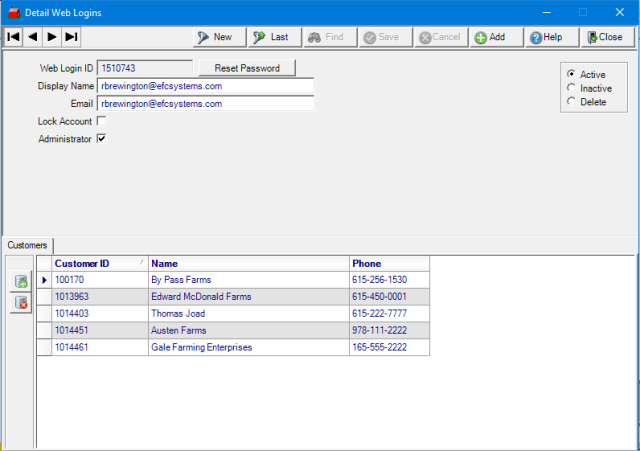
Enter a Web Login ID in this 32 character alpha-numeric field.
Create a Display Name in this 55 character alpha-numeric field.
Enter an Email address in this 50 character alpha-numeric field.
Lock Account, when selected, will prevent the account from signing into the portal.
Administrator, select to allow view only access to the Customer accounts listed.
 Select to generate a new password for the account sent to the Email address associated with the account.
Access Customer Web Logins for Premium Portal Users
 Click here to learn about the additional fields and functionality for locations utilizing the Premium Portal.
For locations utilizing the Premium Customer Portal, Access Customer Web Logins has additional fields and functionality.
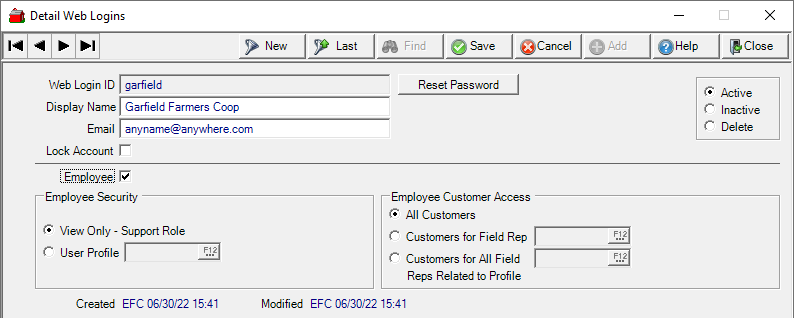
Enter a Web Login ID in this 32 character alpha-numeric field.
Create a Display Name in this 55 character alpha-numeric field.
Enter an Email address in this 50 character alpha-numeric field.
Lock Account, when selected, will prevent the account from signing into the portal.
Select to generate a new password for the account sent to the Email address associated with the account.
Select the updated Employee checkbox adds a Employee Security section which becomes available when Employee is selected.
The default permission is View Only- Support Role.
Select User Profile will set the permissions for the Premium Customer Portal to those set on the User Profile selected by entering the User Profile ID or using F12 to search.
In the Employee Customer Access section, determine the Customer accounts the login will have access.
-
All Customers
-
Customers for Field Rep, the login will have access to any customers the field rep selected is associated with added
-
Customer for All Field Reps Related to Profile, the login will have access to the customers linked with the field rep associated with the User Profile selected in Employee Security.
Customers
Associate Customer accounts with this Web Login.
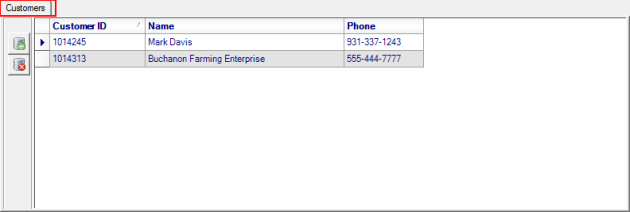
Select  to add a Customer account to the Web Login.
Remove any Customer account by clicking  .
.
Integrations
Associate the web login with external system(s) on the Integrations tab. This will limit customer records that are pulled by the API request to only those assigned to a web login.
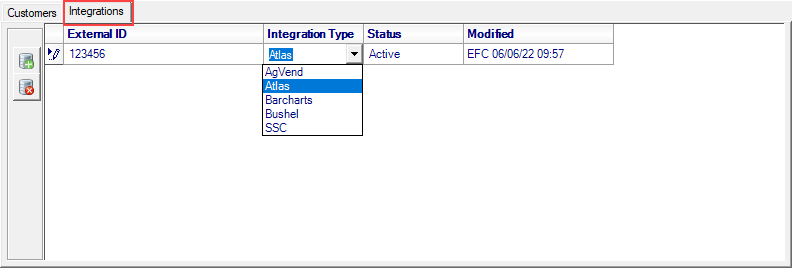
Select to add an integration to the Web Login.
Enter the alpha-numeric External ID for the integration.
Use the drop down list in Integration Type and select
-
AgVend
-
Atlas
-
Barcharts
-
Bushel
-
SSC
The Status will default to Active and record the User ID and the date and timestamp the integration was added or edited appears in the Modified column.